

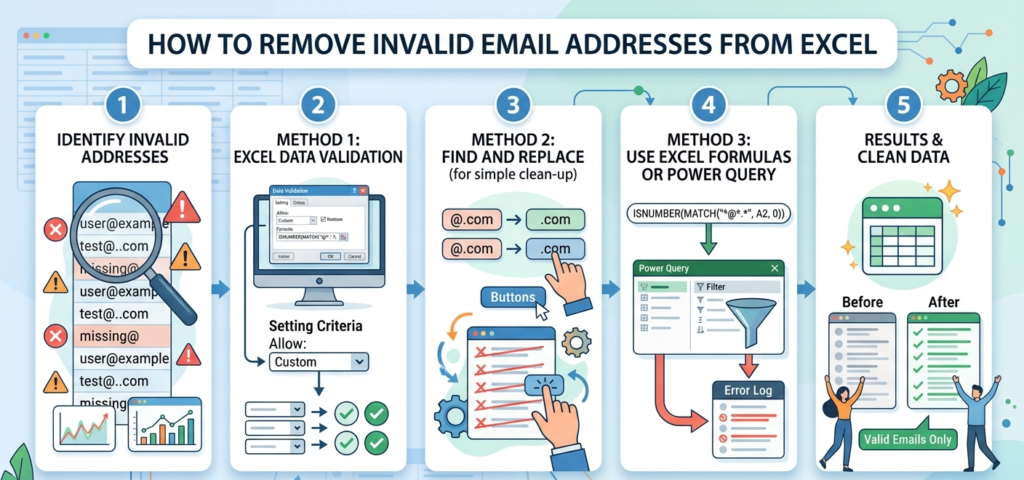
Introduction
Email lists often contain invalid or fake addresses. These addresses reduce campaign performance. They also increase bounce rates quickly. Therefore, cleaning email lists becomes necessary.
Excel provides several helpful tools for data cleaning. These features help remove invalid email addresses easily. Moreover, the process requires only simple steps.
This guide explains practical ways to remove invalid email addresses from Excel. Each method improves list quality. As a result, your email marketing performs better.
Why Removing Invalid Emails from Excel Matters
Invalid email addresses damage marketing performance. They also affect sender reputation.
High bounce rates often trigger spam filters. Consequently, many emails fail to reach inboxes.
Clean email lists improve deliverability rates. They also increase subscriber engagement. Furthermore, marketers save money on email campaigns.
Therefore, regular email list cleaning remains essential for successful marketing.
Common Types of Invalid Email Addresses
Many email lists contain incorrect or unusable addresses. These problems usually appear during manual data entry.
Common invalid email formats include emails without the @ symbol, addresses missing domain names, emails containing spaces, typing mistakes, and duplicate email addresses.
Therefore, identifying these issues quickly helps maintain list quality.
Use Excel Filters to Find Invalid Emails
Excel filters help detect problematic email formats quickly. This method works well for large email lists.
First, open your Excel file containing email addresses. Next, select the column with email data.
After that, click the Data tab and activate the Filter option.
Now search for obvious formatting errors. For example, remove addresses without the @ symbol. Also delete blank entries from the list.
This process removes many invalid email addresses quickly.
Use Excel Formulas to Identify Incorrect Emails
Excel formulas detect email formatting problems efficiently. They highlight invalid email patterns instantly.
Use a simple formula to check email structure.
=IF(ISNUMBER(SEARCH(“@”,A1)),”Valid”,”Invalid”)
This formula checks whether the @ symbol exists.
Next, drag the formula across the column. Excel automatically marks invalid entries.
Afterward, filter results showing Invalid. Finally, delete those rows from the list.
Remove Duplicate Email Addresses
Duplicate emails frequently appear in collected lists. These duplicates waste campaign resources.
Excel includes a built-in feature for removing duplicates.
First, select the email column. Then open the Data tab and click Remove Duplicates.
Excel scans the list immediately. It removes repeated email addresses automatically.
As a result, your email list becomes cleaner and more organized.
Use Conditional Formatting to Highlight Errors
Conditional formatting helps highlight potential errors instantly. This method works well for visual checks.
Start by selecting the email column. Then open the Home tab and choose Conditional Formatting.
Next, create a rule to highlight unusual email patterns.
Highlighted cells immediately show possible errors. Therefore, you can remove incorrect addresses quickly.
Clean Email Lists with Email Verification Tools
Manual cleaning removes basic formatting errors. However, deeper validation requires advanced verification.
Professional email verification tools detect risky addresses. They also identify disposable emails.
Additionally, these tools check domain validity. They even detect inactive mailboxes.
Therefore, combining Excel cleaning with verification tools produces the best results
Best Practices for Maintaining a Clean Email List
Regular list maintenance prevents invalid data buildup. Therefore, marketers should follow simple practices.
Always verify email addresses before campaigns. Remove inactive subscribers regularly.
Avoid purchasing email lists from unknown sources. Moreover, collect emails through verified forms.
Finally, schedule regular email list cleaning every month. These practices maintain strong deliverability.
Conclusion
Removing invalid email addresses from Excel improves email marketing results. Clean lists reduce bounce rates significantly.
Excel offers several useful tools for list cleaning. Filters, formulas, and formatting simplify the process.
However, combining Excel cleaning with email verification tools works best. This approach ensures maximum list accuracy.
Therefore, clean your email lists regularly. As a result, your campaigns will reach real subscribers and achieve better performance.
Ready to clean your list? Download TsEmailValidator.exe — Free (200 emails) or Lifetime for $43 (pay once, unlimited forever). Support: support@timesolutionz.com.